


A flood of irrelevant postings can make a job search feel like a second job. Well-built automated alerts cut through that noise by sending roles that fit your skills, location, and working preferences before listings go stale.
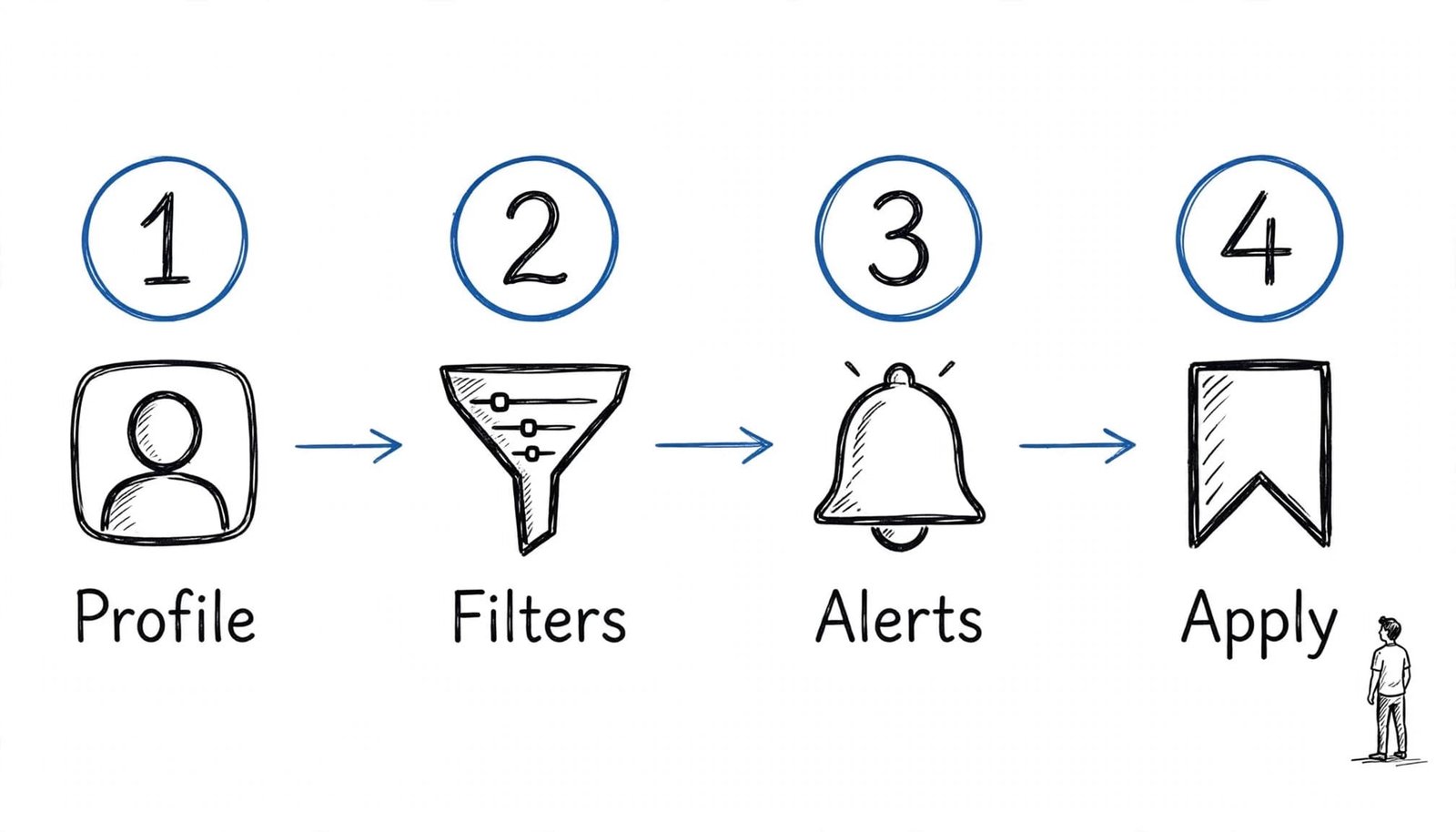
For a job seeker, the goal isn’t more emails. It’s fewer, better opportunities and faster action. The labor market uses more title variations than most people expect. Start with a clear search target, then build saved alerts around the terms employers actually use.
Key Takeaways
- Start with a clear target role, then add realistic title variations based on recurring terms in actual job postings.
- Separate alerts by work arrangement, job type, location, and career priority so each notification has a clear purpose.
- Apply non-negotiable filters first, but use exclusions carefully and loosen one filter when an alert produces no results.
- Use two or three platforms strategically, including LinkedIn, Indeed, or Job Bank, rather than creating alerts everywhere.
- Review alerts every two weeks and turn suitable postings into tailored applications with accurate, role-specific evidence.
Build job alerts around a real target role
Begin with one job title you’d confidently apply for this week. Search it across several platforms, review the first 20 job postings, and note recurring title variations to guide your job search alerts.
Search broadly before you narrow it
A hiring manager may post “Customer Success Manager” while another uses “Client Success Manager” or “Account Manager, Customer Success.” A single exact-title alert will miss part of the market.
Start with the standard title, then add one or two realistic variations. Let recurring title and skill terms shape your job alert keywords, rather than listing every skill on your resume. For example, an operations professional might search:
- “Operations Manager” + logistics
- “Warehouse Operations Manager”
- “Continuous Improvement Manager” + manufacturing
Create one saved search for the standard title and another for a close variation. Include a skill or industry term when it reduces poor matches.
Avoid packing every skill into one search. Long, rigid searches often exclude strong roles because employers phrase requirements differently.
Separate role types instead of mixing them
Build different alerts for different priorities. Keep a remote search separate from an on-site search. Use a separate alert for contract work, part-time work, or a stretch role you would consider.
That structure makes each notification easier to judge. It also reveals which path produces the most suitable job postings after two or three weeks.
A useful alert has a clear purpose. If you can’t explain why a role belongs in it, the search criteria are too broad.
Refine alerts without filtering out good jobs
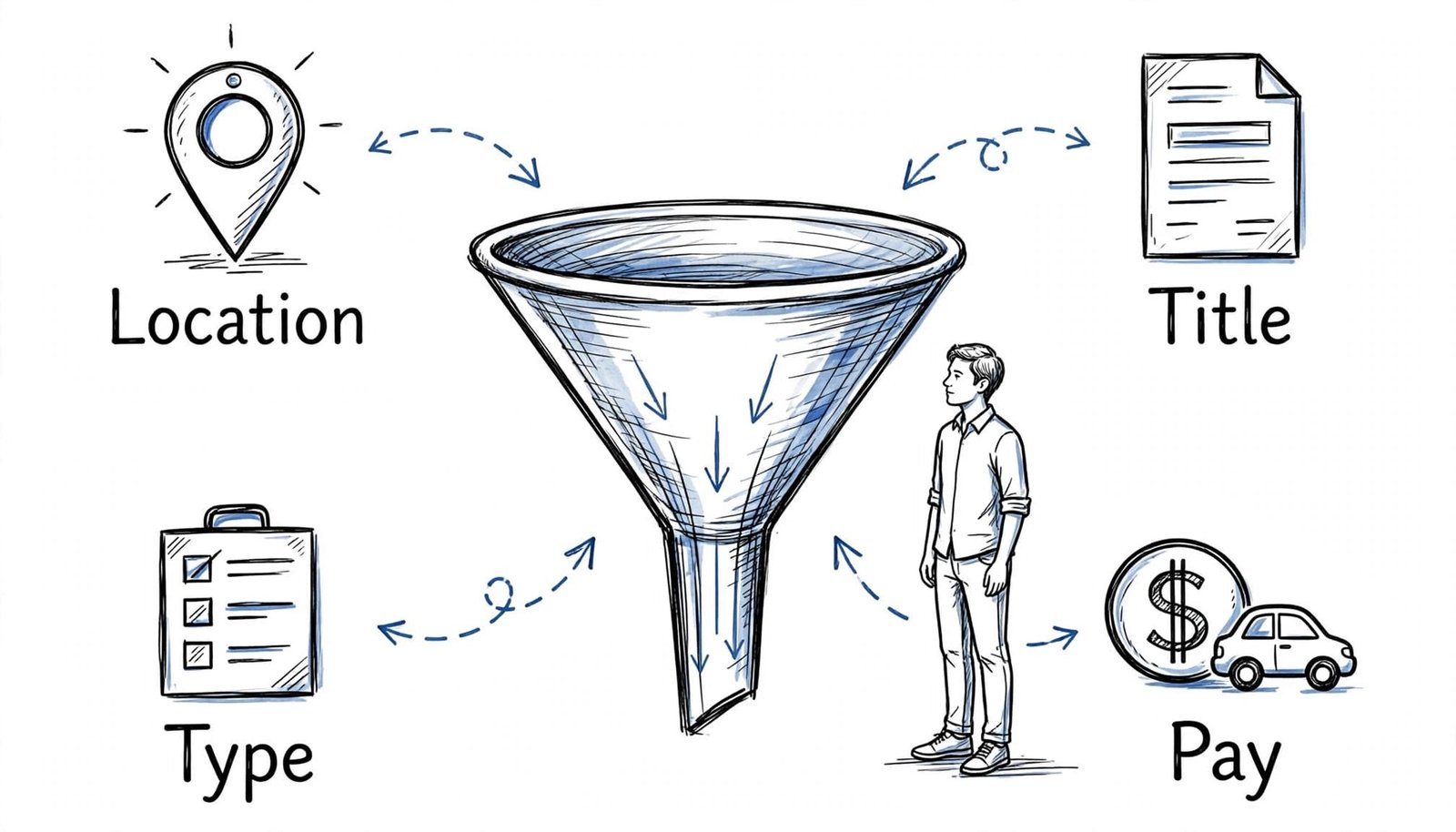
Strong filters save time, but extreme filters can hide opportunities. During a job search, start with the requirements you can’t change, then add preferences one at a time.
Set your non-negotiables first
Location, work authorization, job type, and a realistic commute radius usually belong in every saved search. Separate contract, part-time, and permanent searches by job type, especially when comparing fixed term and ongoing roles.
If salary transparency matters to you, use a pay filter where the platform offers one. But don’t rely on it alone. In 2026, many employers still omit compensation details.
Then test volume. If a saved search produces more than 10 to 15 weak job postings per day, start with a specialty filter. Use relevant job categories for discovery, but research titles before adding exclusions. If it returns nothing for a week, loosen one filter before assuming openings don’t exist.
Use exclusion terms with care
Excluding “senior” may remove suitable roles that welcome applicants with slightly less experience. Excluding “manager” can also hide individual-contributor roles when organizations use unusual or inconsistent titles.
Read several listings before adding negative keywords. The right filter comes from patterns in actual postings, not assumptions about titles.
Set up alerts on major job platforms
To learn how to set up job alerts, use two or three platforms, not every board you can find. Each platform has different employers and search tools, so overlap is normal.
Canada Job Bank for Canadian roles
On Job Bank’s job search page, run your search. Job Bank then lets you choose “Create an alert with this search.” That free email notification service matches listings, and its main search page says postings arrive daily.
Refine the search before saving it. Job Bank filters can include salary, benefits, hours of work, job type, and job categories. These options help if your availability or minimum pay is fixed.
Your Job Bank account stores saved searches and alert settings. A Job Bank standard account handles ordinary searches and saved alerts. A Job Bank plus account supports a fuller profile and added matching features. A plus account isn’t necessary for ordinary searches. Job Match on Job Bank is separate from standard alerts and uses your completed profile to identify matches.
Search Job Bank for “City of Ottawa planning coordinator,” then enter City of Ottawa or City of Calgary in the employer or location field. Compare the results with a second City of Calgary department query and review municipal employment opportunities. On Job Bank, save the City of Ottawa search; check the City of Ottawa careers page for direct postings. For a municipal employer, application routes can differ by status. For the City of Ottawa, a current employee may use an internal route, while an external candidate should follow the public process. Read the posted instructions before applying. Review the organization’s own City of Ottawa listing, then recheck the City of Ottawa page if the alert links elsewhere.
LinkedIn for role and network visibility
Search Jobs, apply your filters, and switch on the alert toggle from the results page. LinkedIn’s job-alert settings offer daily or weekly delivery by email, mobile app notification, or both. Its job-alert management guidance also confirms a limit of 20 active alerts.
Use LinkedIn for titles that vary by company. Follow target employers to build your professional network, because direct company postings may appear there first.
Indeed for volume and practical filters
Indeed requires you to sign in or create an account before making alerts. Search by title, skill, company, and location, then save the search as an alert. Indeed’s alert settings let you edit, pause, or delete it, as outlined in Indeed’s alert management instructions.
Set daily delivery for a fast-moving field, or choose weekly delivery for a narrow specialty or passive search. Indeed can send notices by email or through its mobile app. No email may arrive when no new role matches your criteria, which is better than receiving recycled listings. Review notifications in a supported platform’s mobile app when useful.
Turn each suitable alert into a stronger application
Opening an alert is only the first step. Save viable roles immediately, then review the full description before applying. Focus on required skills, repeated phrases, and the outcomes the employer wants.
Tailor your resume to the posting
A general resume makes it harder for an applicant-tracking system to spot your fit. Clear evidence and legitimate language from the posting help a recruiter assess your match, especially for role-specific tools, certifications, and responsibilities.
CareerScribeAI can help after you find a suitable role, using its AI Resume Builder and job-description analysis to spot keyword gaps. A resume builder can compare the posting with your base resume. Use its version history to save a customized resume for each application, but keep every suggestion grounded in real experience. Add numbers where your record supports them, such as revenue influenced, turnaround time reduced, or team size managed.
Prepare before an interview invitation arrives
Use a Cover Letter Generator to produce a role-focused draft, then verify every claim and adjust the voice. AI can suggest wording, but only you can confirm each achievement is accurate.
For interview preparation, build a small library of STAR stories. STAR means Situation, Task, Action, and Result. CareerScribeAI’s Interview Prep Tools can help organize likely questions, but rehearse your own examples aloud. Clear details beat memorized scripts and help your resume, draft, and stories work together through the application process.
Frequently Asked Questions
How many job alerts should I create?
Start with a small set of focused alerts across two or three platforms. Separate different priorities, such as remote work, contract roles, and on-site positions, so the results remain easy to assess.
Which keywords should I use in a job alert?
Use one standard job title and one or two realistic variations found in current postings. Add a skill or industry term only when it improves relevance, and avoid listing every skill from your resume.
How often should I review or adjust job alerts?
Review each alert every two weeks. Keep alerts that produce credible opportunities, revise noisy searches, and loosen one filter if an alert returns no results for a week.
Are job alerts enough to find a suitable role?
No. Alerts help you find opportunities quickly, but you still need to review the full description and tailor your resume and application. Strong evidence, accurate keywords, and preparation for interviews improve the value of each match.
Make alerts work for you, not against you
A disciplined job seeker gets better-match alerts through thoughtful searches, separate priorities, and regular adjustments. During a job search, review each alert every two weeks, keeping those that surface credible career opportunities through tailored job notifications and revising noisy ones.
Speed matters, yet relevance matters more. A focused alert paired with an accurate, tailored application is more valuable than a high volume of weak matches.