


Ever uploaded a resume that looked perfect, then pasted it into an application box and watched the spacing crumble? That’s not bad luck. It’s a resume format issue that shows up when recruiting software, known as an Applicant Tracking System, turns your document into plain text.
In March 2026, there aren’t public, resume-format-specific “ClearCompany updates” that change the fundamentals. So the safest approach stays the same: build a ClearCompany ATS resume format that reads cleanly as text first, and looks polished second.
This guide gives you a practical format, a fast copy-paste test, and fixes for the most common failures.
What ClearCompany ATS “sees” when you upload your resume
An ATS doesn’t admire your layout. Through resume parsing, it extracts text, detects sections, then maps details into fields hiring teams skim (name, employer, dates, skills). If your resume relies on design elements that don’t convert well, the system may scramble the order or drop content.
ClearCompany, part of a larger talent management suite, shares general formatting guidance that matches this reality, including common pitfalls like graphics and complex layouts (see ClearCompany’s ATS formatting tips). The big idea is simple: keep your resume easy to parse. A clean format also enhances candidate experience by improving the user journey through the recruitment process.
If your resume doesn’t paste cleanly into plain text, assume the ATS may not map it cleanly either.
A quick mental model helps: think of your resume like a shipping label. A fancy label can look nice, but if the barcode smears, the package goes nowhere. In ATS terms, “smears” usually means columns, tables, text boxes, icons, headers and footers, and decorative fonts.
If you want deeper background on why this happens across systems, this breakdown of resume parsing errors and fixes explains the common extraction problems in plain language.
A clean ClearCompany ATS resume format (boring layout, strong content)
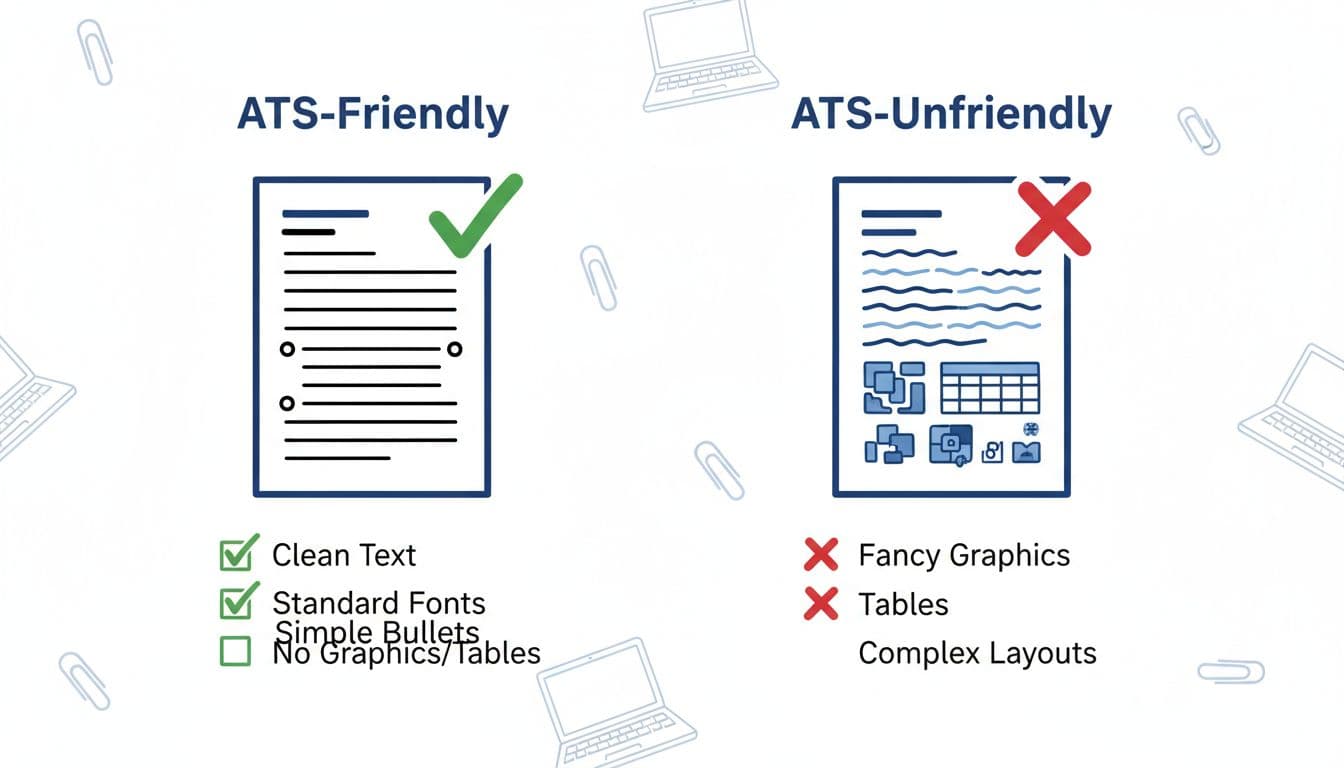
The most reliable layout for ClearCompany ATS is a single-column, left-aligned resume with standard headings. It may feel plain, but it protects your content when the system converts your file.
Format rules that usually parse well
Keep these choices consistent from top to bottom:
- Use one column only (no sidebars).
- Put contact information in the document body, not a header.
- Stick to sans-serif fonts (Calibri, Arial, Times New Roman) at 10 to 12 pt.
- Use bullet points (solid dots or hyphens).
- Avoid tables, text boxes, icons, charts, and logos.
- Use one date style everywhere (for example,
MM/YYYY).
Mini ATS resume template (safe section order + sample headings)
This structure works well as an ATS resume template because it matches how most systems detect sections:
- Name
- City, State | Phone | Email | LinkedIn
- Qualification Summary (2 to 3 lines)
- Skills (8 to 12 role-specific skills)
- Professional Experience
- Educational History
- Certifications (optional)
- Projects (optional, only if relevant)
For tailoring without breaking your structure, keep formatting locked while you edit content to match the job description. CareerScribeAI’s AI-powered tools, like the AI Resume Builder, are useful here because they help you rewrite bullets into clearer outcomes while keeping headings consistent. Then, when your resume is stable, its Cover Letter Generator and Interview Prep Tools help you keep your story aligned from application to interview.
PDF vs DOCX for ATS in 2026
Follow the job post first. If it says PDF format, submit PDF. If it says DOCX or Microsoft Word, use DOCX. When it doesn’t specify, DOCX often produces fewer surprises, but a clean PDF format can work well too. The safest move is to test the exact file you plan to upload.
The ClearCompany copy-paste test (3 minutes, zero guesswork)
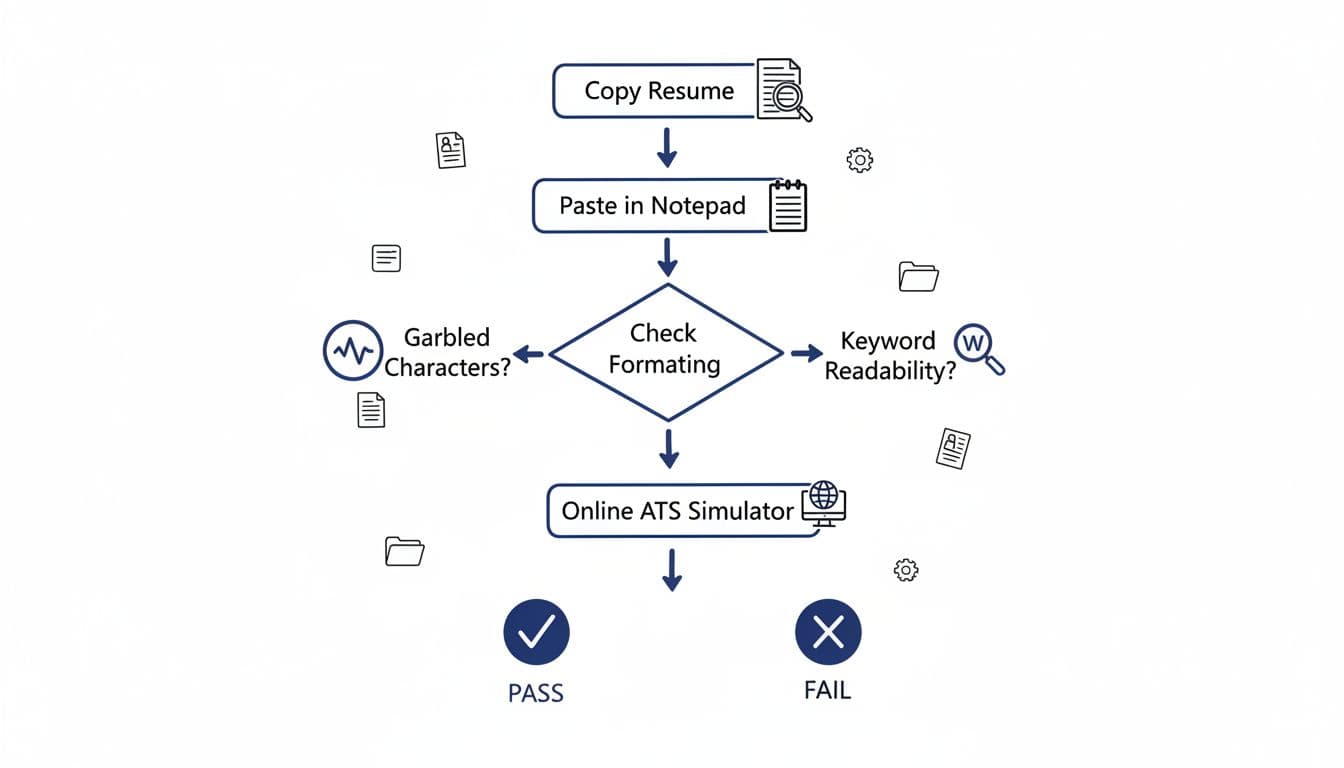
The copy-paste test is a fast way to simulate resume parsing and preview what an ATS might extract. It’s not perfect, but it catches the most common formatting failures before you apply. This vital step in the modern recruitment process helps ensure your resume passes Applicant Tracking System checks.
Step-by-step
- Open the resume file you’ll submit (PDF or DOCX).
- Select all text, then copy.
- Paste into a plain text editor (Notepad on Windows, TextEdit in plain text mode on Mac).
- Scan for missing sections, weird symbols, and scrambled order.
- Optional: paste into an online parser to see mapped fields.
For the optional step, a basic ATS resume parser test can help you spot whether your job titles, dates, and skills land where they should.
What a “pass” looks like
You should still see clear section headings, readable bullets (even if they turn into hyphens), and each job grouped correctly (company, job titles, dates, bullets). Most importantly, your contact info stays at the top, job titles and hard skills are key data points the Applicant Tracking System must extract correctly, and your skills remain searchable.
Paste-test failures: what they mean and how to fix them fast
Most issues come from a handful of formatting habits. Fix the smallest thing that addresses the problem, then re-test.
Here’s a quick troubleshooting guide based on what you see after pasting:
| What you see after paste | Likely cause | Fast fix |
|---|---|---|
| Contact info is missing or moved | Header/footer text didn’t extract | Move contact info into the main document body |
| Bullet points become squares or odd symbols | Special bullet point glyphs or icon bullet points | Switch to standard bullet points or simple hyphens |
| Experience reads out of order | Two-column layout or tables | Convert to one column, remove tables/text boxes |
| Dates drift far from job titles | Tabs, right-aligned date columns | Put dates on the same line as title, separated by a comma |
| Lines break mid-sentence | Manual line breaks or heavy indentation | Remove manual breaks, reduce indentation, use normal spacing |
| Some text disappears entirely | Text boxes, shapes, graphics | Replace with plain text and standard headings |
If you’re unsure whether your structure is “normal enough,” comparing it to another one-column ATS guide can settle it quickly. These are good references for the same parsing-first approach: the Lever one-column template and this Recruitee copy-paste test guide.
One more practical tip: after formatting passes, focus on alignment. These fixes help when applying via a career site, mobile applications, or text-to-apply features. Maintaining a clean work history structure avoids confusion during background checks. CareerScribeAI’s tools can help you mirror the job description language (skills, tools, job title wording) without keyword stuffing or turning your resume into a robot script.
Conclusion: Make it paste-clean, then make it memorable
A dependable ClearCompany ATS resume format is simple: one column, standard headings, clean bullets, and consistent dates. A clean format like this improves the overall candidate experience for the hiring manager. After that, prove it with the copy-paste test on the exact file you’ll upload. Finally, spend your time where it counts, sharpening impact bullets, matching key skills to pass the initial Applicant Tracking System screen, and practicing interview stories with AI-powered tools like CareerScribeAI so your resume and answers match and lead to interview scheduling.