

Upload a resume to a Workday application and it can look perfect, right up until the preview shows your bullets glued together, dates floating, and sections out of order. That’s not your imagination. It’s ATS parsing, a common pitfall of improper ATS resume formatting.
In 2026, the safest Workday ATS resume format is still the simplest one: a clean, single-column document that reads like a plain, well-labeled outline. If your resume can survive being turned into plain text, it can usually survive Workday.
This guide gives you layout rules that reduce section scrambling and ensure resume keywords are properly indexed, a quick copy-paste test you can do in under two minutes, and a troubleshooting table to fix the most common failures.
Why Workday scrambles resumes (and what “parsing” really means)
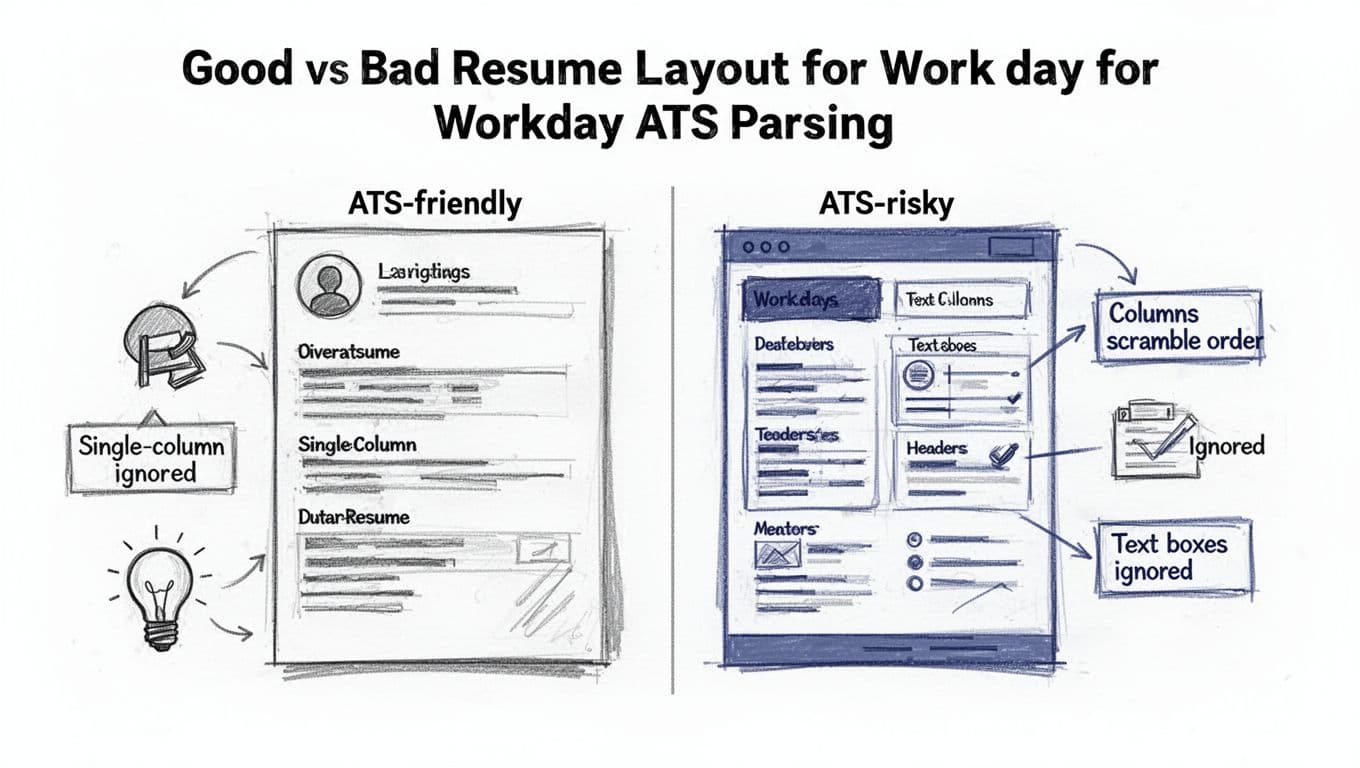
Workday doesn’t “see” your resume the way a person does. ATS parsing works more like a copier that scans text blocks and performs extraction and segmentation to rebuild them into fields and sections (name, contact info, job titles, dates, skills). When the layout is complex, the copier grabs pieces in the wrong order.
This follows the technical logic of reading order in a resume parser. A human knows to read down the left column first, then the right. A resume parser might read straight across the page, then drop to the next line, mixing columns into a scrambled sentence.
Common reasons Workday reorders content:
- Multi-column resume: The parser may merge left and right columns line by line.
- Text boxes and shapes: Some content can be skipped, partially captured, or pasted in odd places.
- Headers and footers: Your name and page number may repeat inside the body fields.
- Tables: Cell boundaries can confuse section order and date alignment.
- Inline graphics and icons: Decorative elements can break spacing or replace bullets with odd characters.
If your goal is an ATS-friendly resume, you’re not “dumbing it down.” You’re making it readable to the first reader, which is software.
The 2026 Formatting Rules for a Workday-friendly, ATS-friendly resume
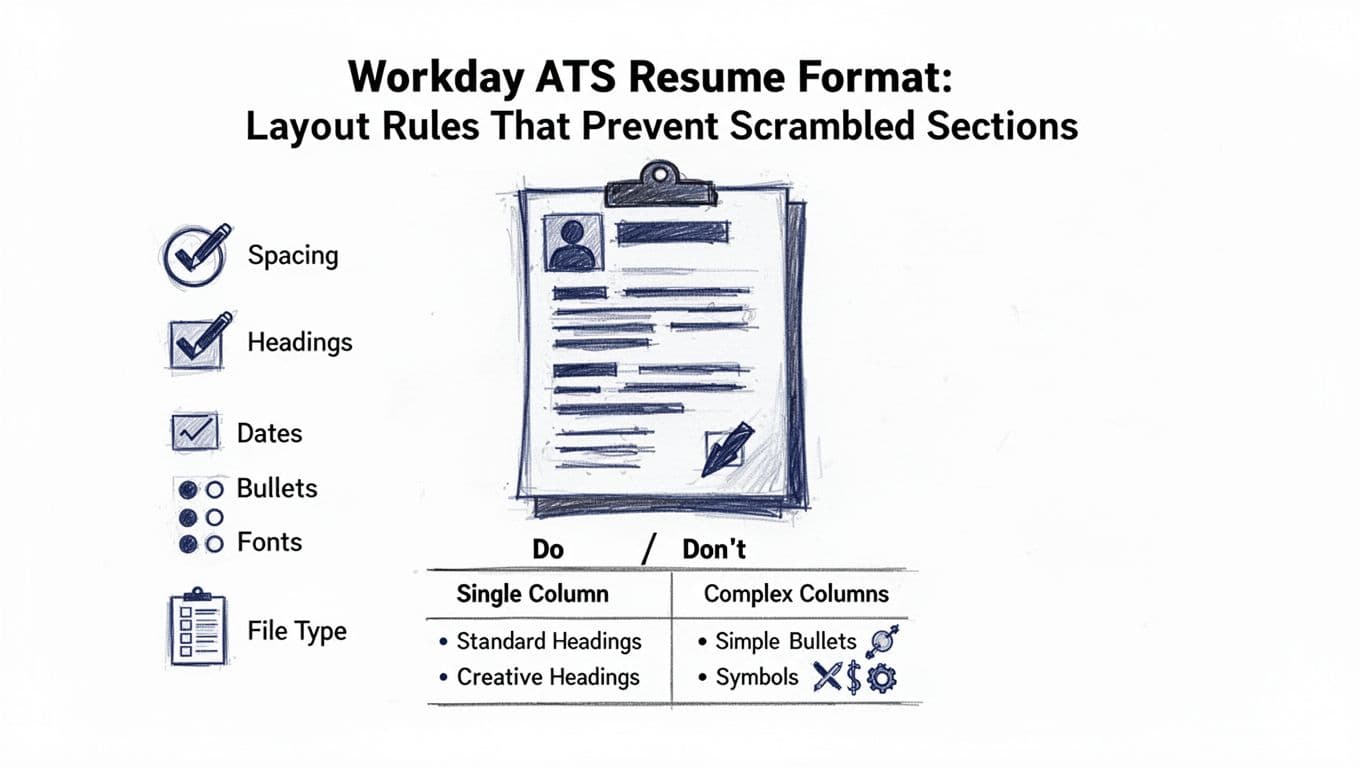
A Workday upload goes best when your resume is built like a clean document, not a design project. Use these rules as your baseline, then adjust only if you can pass the copy-paste test later.
Workday ATS resume format checklist (layout and structure)
- Single-column layout: Maintain a single-column layout from top to bottom. No sidebars.
- Standard headers: Use plain labels like “Experience,” “Education,” “Skills,” “Projects,” “Certifications.” Avoid creative headings that hide meaning.
- Simple hierarchy: Company, title, location, dates; then bullets. Repeat this pattern for each role.
- Consistent dates: Pick one format and keep it everywhere (for example, the MM/YYYY date format like “01/2023 to 02/2026”). Don’t mix formats in different sections.
- Left-aligned text: Avoid full justification. It can create weird spacing when converted to plain text.
- Standard bullet points: Round bullets are safest. Avoid arrows, checkmarks, diamonds, and custom icon bullets.
- System fonts: Use a common font and avoid very light weights. The parser cares more about characters than style, but clean text reduces errors.
- Clear spacing: Use a single blank line between roles or sections. Don’t rely on tight line spacing or manual line breaks to “shape” content.
If you want help getting a solid structure quickly, CareerScribeAI.com’s AI Resume Builder is useful for generating an ATS-safe layout and role bullets that stay readable when parsed. Treat it like a starting frame, then tailor the content to the job.
Formatting traps that cause Workday section scrambling
These are the usual culprits when Workday turns your resume into a mess:
- Two columns anywhere (including a two-column header for Contact information)
- Text boxes for skills, summary, or impact metrics
- Headers and footers with contact details, page numbers, or repeated name
- Tables used to align dates, skills, or tools
- Inline graphics (logos, headshots, rating bars, icon rows)
- Manual spacing hacks (multiple spaces or tabs to align text)
- Unusual characters copied from the web (fancy bullets, thin spaces)
A clean Word document can still hide a risky structure. That’s why the next step matters.
The 2-minute Workday copy-paste test (do this before you upload)
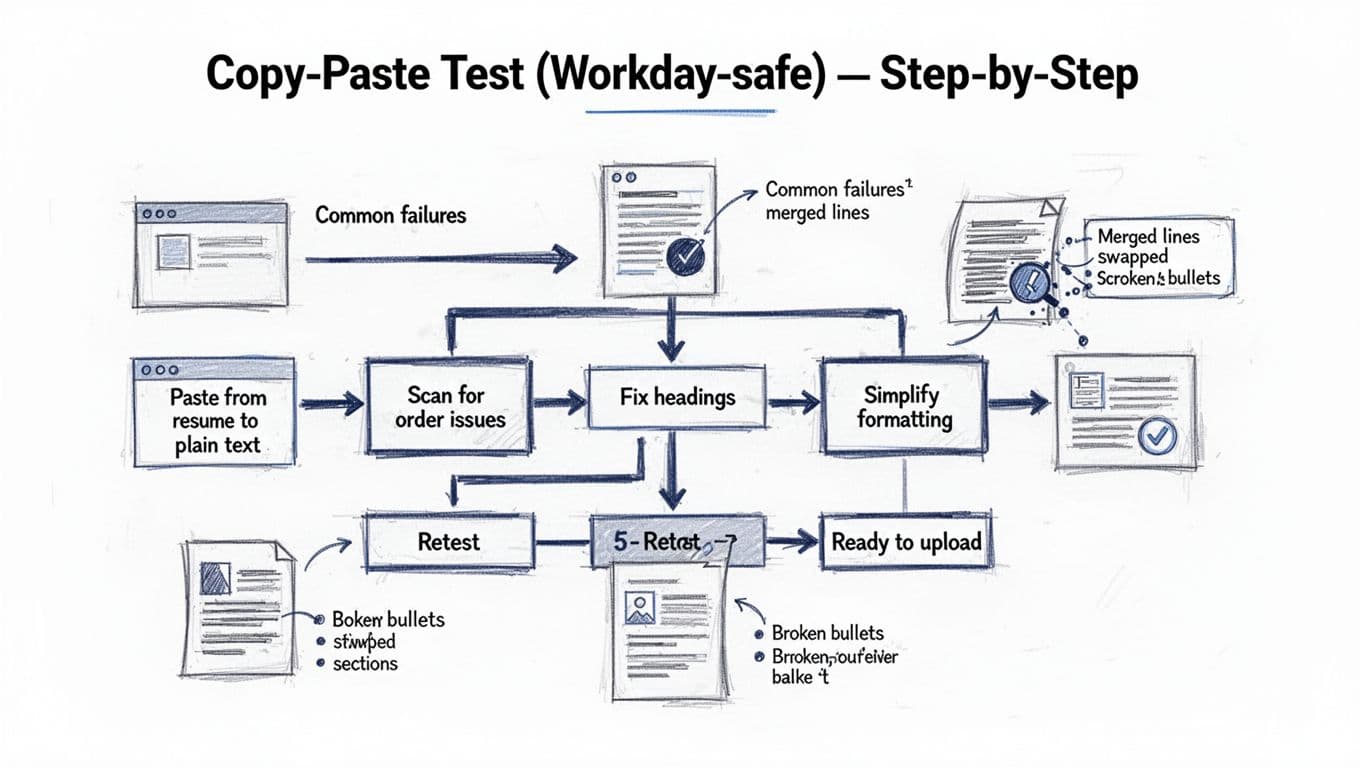
This test takes less time than retyping scrambled fields in a Workday application.
Copy-paste test (numbered steps)
- Open your resume in Word or Google Docs.
- Copy all text (Ctrl/Cmd + A, then Ctrl/Cmd + C).
- Paste into plain text (Notepad on Windows, TextEdit in plain-text mode on Mac, or a blank email in “plain text” format).
- Scan the Reading order: Does it read top to bottom correctly, with sections in the right sequence?
- Check your Work Experience section: For each job, do the company, title, location, and dates stay together, followed by bullets?
- Look for red flags:
- bullets turned into Garbage characters or empty squares
- lines merged (title and dates on the same line with no separator)
- skills or Professional Summary appearing in the middle of experience
- Fix one issue at a time, then repeat the paste. Don’t guess which change helped.
If your plain-text version reads cleanly, you’ve ensured Scan-able text and removed most of the formatting risk that causes Workday parsing problems.
For Workday submissions, pairing the resume with a tight, role-specific letter can also help. CareerScribeAI.com’s Cover Letter Generator can produce a clean letter structure that matches your resume tone, without relying on heavy design.
PDF vs DOCX Choices and Quick Fixes When Parsing Breaks
Workday often accepts both DOCX and PDF. The best choice depends on your resume’s simplicity and how Workday is ingesting the file in that specific application flow, helping avoid parsing errors.
- DOCX is usually the easiest for systems to extract text from cleanly, especially when your resume is already plain, single-column, and built with standard headings.
- PDF can preserve visual spacing better for human readability, but some PDFs (especially those exported from design tools) may store text in ways that don’t copy cleanly. That can show up as broken lines or odd character spacing in parsing.
The safest approach is practical: run the copy-paste test on both versions. Use the one that produces cleaner plain text and a better Workday preview. Poor formatting can lead to auto-rejected candidates or lower automated ranking results.
Symptom, cause, fix (Workday parsing troubleshooting)
| Symptom in Workday preview | Likely cause | Fix that usually works |
|---|---|---|
| Experience bullets appear under the wrong job | Columns, tables, or inconsistent spacing | Convert to a single-column layout, remove tables, use one blank line between roles |
| Contact info repeats in the body | Header or footer content got pulled in | Move contact info into the main body at the top, remove headers and footers |
| Dates are missing or glued to titles | Tab alignment, multiple spaces, or text boxes | Use a simple separator (comma or vertical bar), keep dates on the same line consistently |
| Technical skills section shows up in the middle of experience | Sidebar, text box, or multi-column skills list | Put skills in the main column, use a simple comma-separated list or short lines |
| Bullets become squares or odd symbols | Decorative bullets or copied characters | Replace with standard round bullets, retype bullet characters if needed |
| Section headings disappear | Non-standard heading labels or styled objects | Use plain text headings like “Experience” and “Education,” avoid shapes |
After you pass ATS screens and start getting interviews, prep becomes the next bottleneck. CareerScribeAI.com’s Interview Prep Tools can help you rehearse role-specific answers based on the job description and your resume content.
Conclusion: submit to Workday with confidence (final action checklist)
Before you hit “Submit,” treat your resume like it’s going through a strict scanner, because it is. Proper ATS Resume Formatting with a clean single-column structure, standard headings, and plain bullets prevents most section scrambling and ensures your Resume keywords are found by the recruiter.
Use this final Workday ATS Resume Format checklist:
- Save an ATS-safe version with no columns, text boxes, headers, footers, tables, or graphics.
- Run the 2-minute copy-paste test and confirm the order reads correctly in plain text.
- Compare DOCX and PDF by pasting each into plain text, then choose the cleaner result.
- Upload, then review the Workday preview and fix any mis-placed dates or merged lines.
- Submit only after the preview matches your original section order.