


Ever feel like your resume says the right things, yet applications vanish into silence? Often, it’s not your experience. It’s how the applicant tracking system turns your resume into text after upload.
In 2026, the safest Lever ATS resume format is an ATS resume format: one column, standard headings, consistent dates, and zero decorative elements that break parsing. This guide shows the single-column layout that typically reads well in Lever and similar ATS tools, plus a fast copy-paste test you can run in under two minutes.
What an Applicant Tracking System Extracts (and why “clean” beats “pretty”)
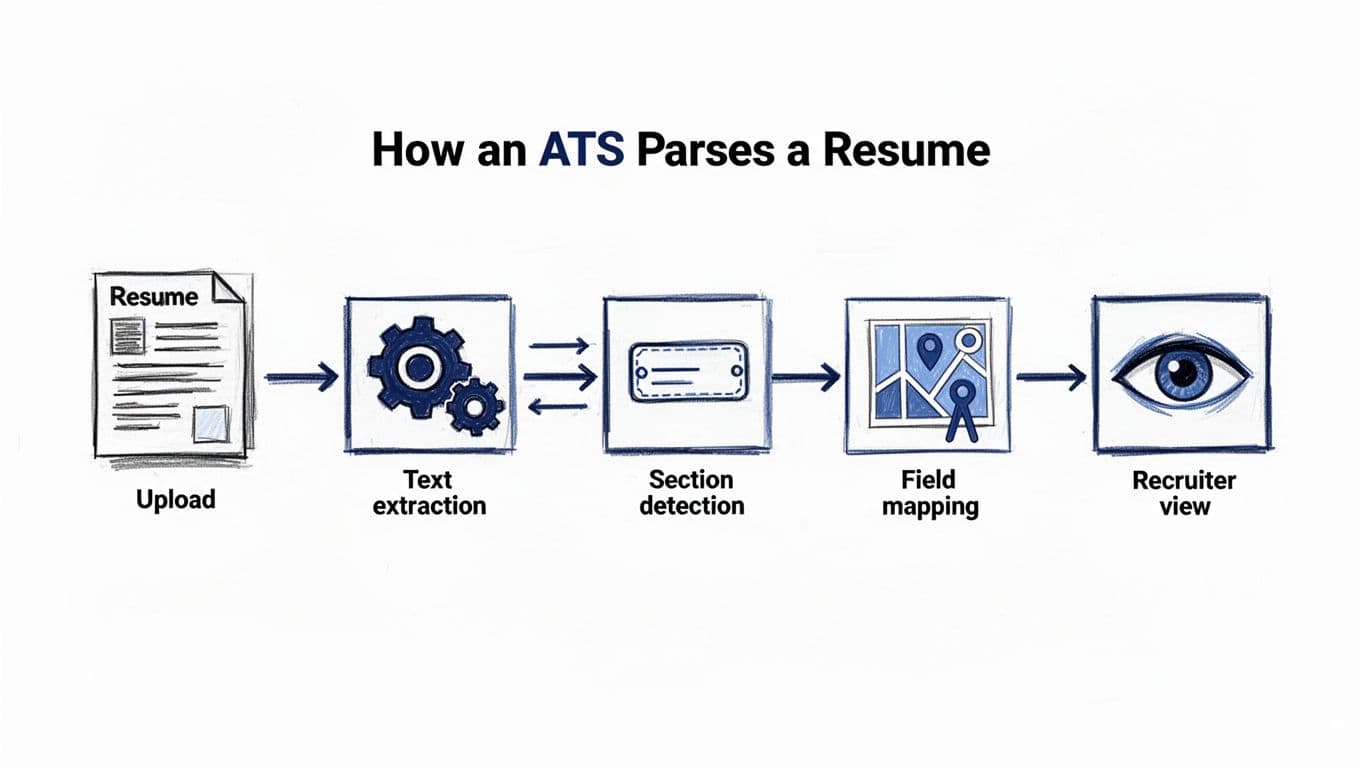
When you upload a resume, an ATS typically follows a predictable path (see diagram above): it performs text extraction for candidate screening, detects sections, maps fields (like job title and employer), then shows a recruiter-friendly view.
That’s why formatting choices matter so much. If the tool can’t read your structure, it can scramble your content. Hiring managers might still understand it, but the system may not place it where it belongs.
The most common parsing errors come from formatting issues in layouts designed for the eye, not the machine:
- Multi-column pages (the right column may get read first, or merged line-by-line)
- Tables, text boxes, and shapes (content can disappear or jumble)
- Icons instead of words (a phone icon is not a phone number)
- Headers and footers for key details (contact info can get missed)
- Unusual headings (“Career Story” instead of “Experience”)
These parsing errors can lead to AI screening failures. Lever publishes guidance about resume parsing in its own help content, and it’s a useful reminder that parsing is about reliable text extraction, not visual design. See Lever’s overview of resume parsing for more context on how systems interpret uploaded resumes. Achieving parsing success is the priority over visual flair.
If the ATS can’t read your layout, it can’t “like” your achievements, no matter how strong they are.
Lever ATS Resume Format Checklist (2026): One Column, Standard Headings, Steady Dates
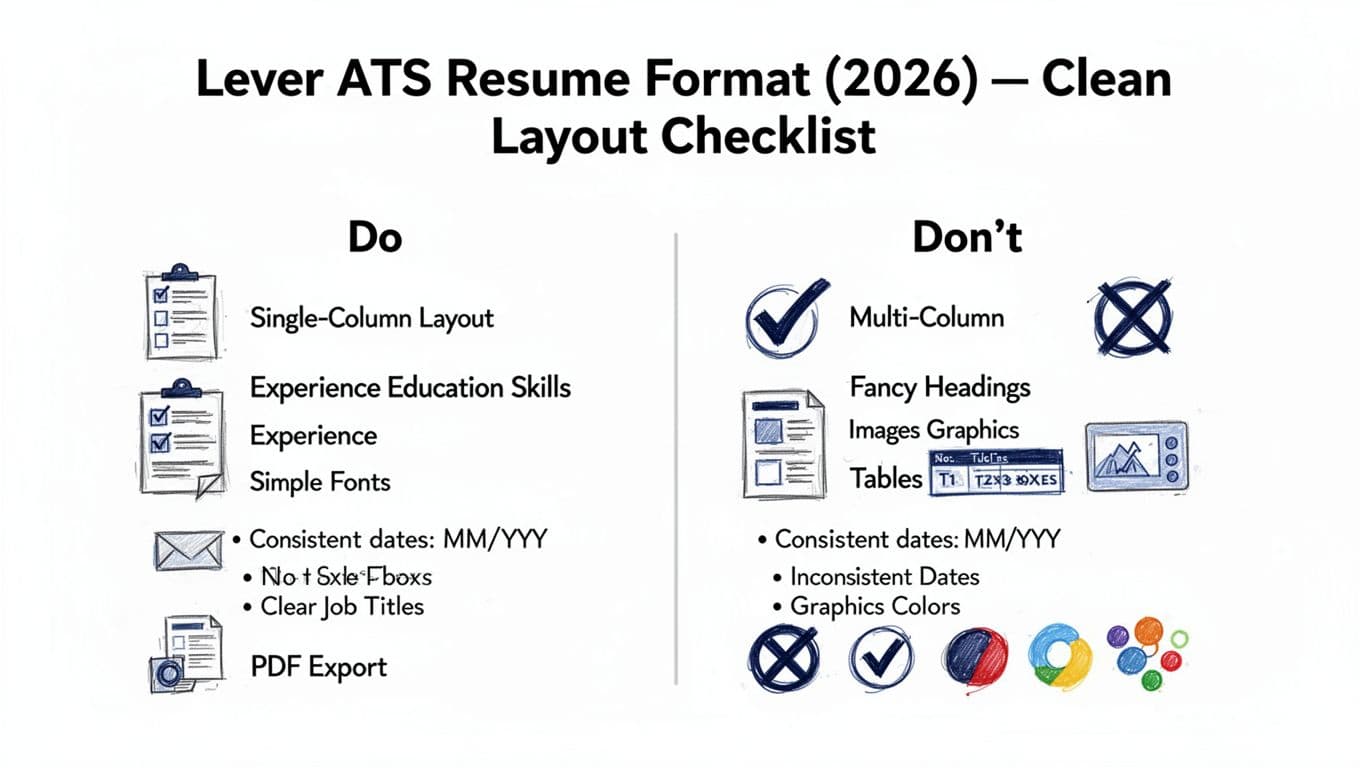
A good rule: build your resume like it’s going to be copied into a plain text file later. Because it is. The infographic above shows the core idea, and the details below help you apply it.
Layout rules that usually parse well
Keep these choices consistent across the whole document:
Single-column layout. Put everything in one straight reading path. Sidebars feel helpful, but they often confuse parsers.
Standard headings. Use labels most ATS tools expect with standard section headers:
- Professional Summary (optional)
- Experience (or Professional Experience)
- Education
- Skills
- Projects (optional)
- Certifications (optional)
Simple fonts and spacing. Use standard fonts like Arial, Calibri, Times New Roman. Stick to one font, two sizes max. Keep line spacing steady.
Dates in one format. Pick one and use it everywhere. For example: MM/YYYY or YYYY. Don’t mix “Spring 2023” with “01/2024”.
Clear job titles and employers. Put them on their own lines. Avoid stacking details with symbols.
Here’s a plain resume template that tends to work well in the Lever ATS resume format and minimizes extraction errors:
- Contact information
- City, State, Phone, Email, LinkedIn URL
- Professional summary (optional, 2 to 3 lines)
- Skills section (comma-separated or short grouped lists)
- Work experience (reverse chronological)
- Education
- Certifications or Projects (only if relevant)
For more general ATS formatting guidance (beyond Lever), Jobscan’s overview is a solid reference point. See Jobscan’s ATS-friendly resume guidance for 2026.
PDF or Word for Lever (quick, practical guidance)
Follow the employer’s instructions first. If they specify PDF, use PDF. If they specify DOCX, use DOCX. If they don’t specify, this simple comparison helps.
| File type | When it’s a good choice | Watch-outs |
|---|---|---|
| DOCX | Safest bet for consistent text extraction | Can look slightly different across devices |
| Looks consistent visually | Some PDFs still parse poorly if exported oddly |
The takeaway: a clean one-column layout matters more than the file type, but DOCX often reduces surprises when instructions are unclear.
The 2-minute copy-paste test (plus fast fixes if it fails)
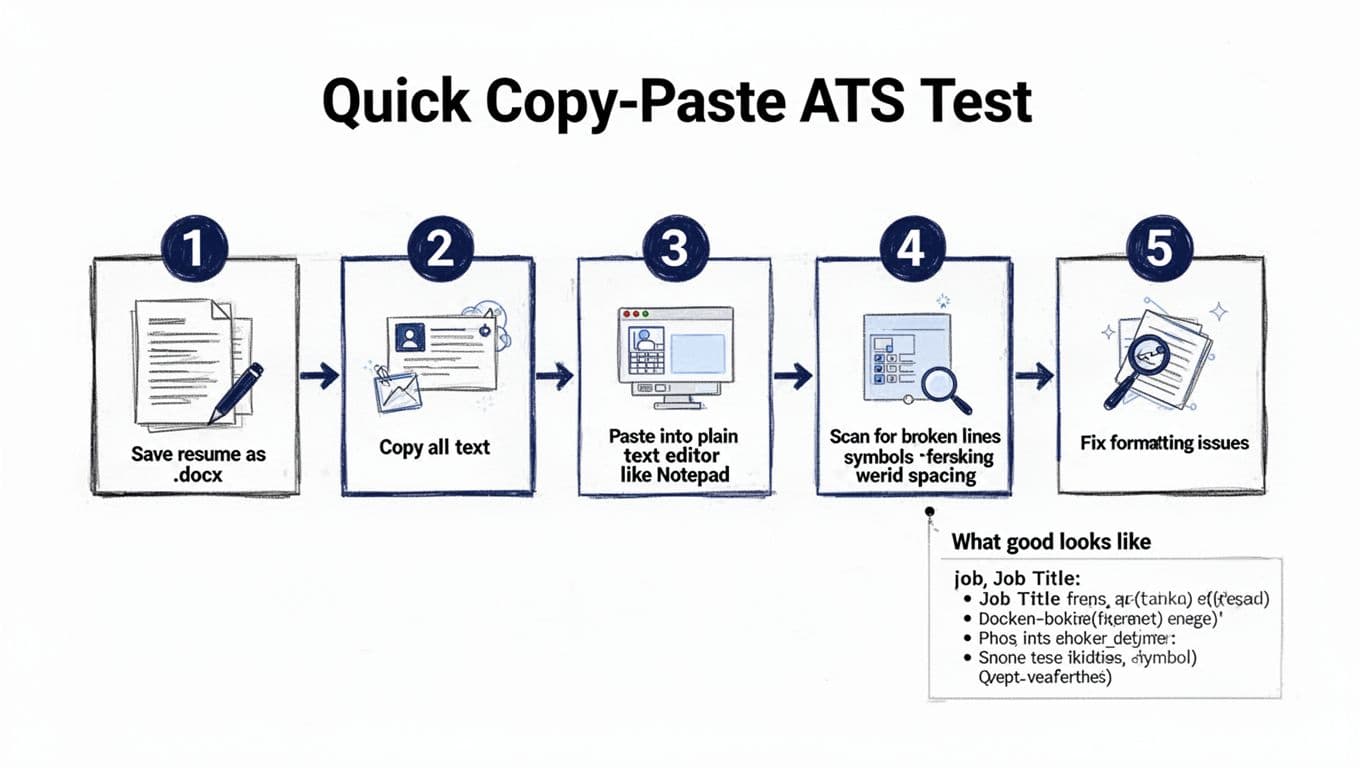
This test is simple, fast, and revealing (see infographic above). It won’t guarantee a perfect parse in every system, but it catches the most common formatting issues.
Run the test in under two minutes
- Save your resume as .docx (even if you’ll submit PDF later).
- Select all text (Ctrl+A or Cmd+A), then copy.
- Paste into a plain text editor (Notepad, TextEdit in plain text mode, or a basic notes app).
- Scan for formatting issues like broken lines, weird symbols, missing words, or mixed-up sections.
- Fix issues, then repeat once.
What “good” looks like
After pasting, you should still see:
- Your contact info in one clean block
- Headings that stand out as plain words (not graphics)
- Job titles, companies, and dates that stay together
- Resume bullet points that remain readable (even if bullets become hyphens)
If you want a deeper look at how Lever works from a job seeker’s point of view, Jobscan’s explainer is helpful. Read what job seekers should know about Lever ATS.
Quick fixes based on what you see
Use the pasted text as your “X-ray.” Then apply the smallest fix that solves the formatting issue. Using a pre-vetted resume template can prevent these errors from happening in the first place.
- Lines wrap in strange places: Remove columns, shrink long lines, and avoid manual line breaks (Shift+Enter).
- Bullets turn into odd symbols: Switch to basic round bullets, or use hyphens. Keep indentation simple.
- Dates drift away from jobs: Put dates on the same line as employer or directly under it, and keep one date format.
- Sections appear out of order: Replace creative headings with standard ones (Experience, Education, Skills).
- Contact info disappears: Move it out of headers/footers and into the document body.
Once the layout is fixed, improve your content with action verbs and hard skills.
If you’re short on time, tools can help you keep formatting steady while you tailor content. CareerScribeAI can be useful here: an AI Resume Builder to keep an ATS-safe structure while adapting bullets with job description keywords through keyword targeting and industry terminology, a Cover Letter Generator that matches the same clean formatting, and Interview Prep tools to align your talking points with role requirements.
For an employer-neutral perspective on ATS scanners and why clean text matters, especially quantifiable results that appeal to hiring managers, Penn Career Services explains the basics in their guidance on optimizing for AI scanners.
Final checks before you submit to Lever
Before you upload, re-read your resume like a parser would: straight down the page, no side trips. Keep the Lever ATS Resume Format in 2026 boring in layout, so your experience can be the interesting part. Run the copy-paste test once more for parsing success, ensuring your action verbs and achievements reach hiring managers. Then export in the file formats the application asks for. Most importantly, make sure your titles, skills, and impact bullets stay intact after paste, because that’s what they actually search. Finally, double-check file formats before clicking submit.



[…] attributes in the work experience section. For a similar one-column layout example, use the one-column ATS resume template guide and apply the same formatting rules to […]
[…] If you’re unsure whether your layout parses cleanly, this guide is a strong reference: One-column template for Lever ATS. Even if the company doesn’t use Lever, the formatting advice carries over to many […]