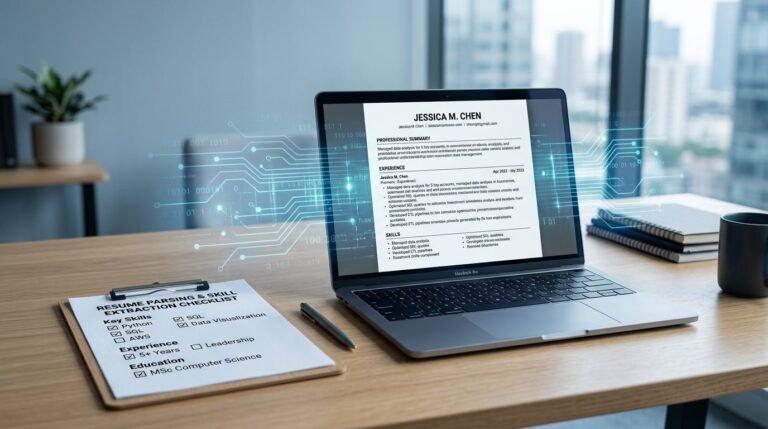


Ever copy your resume into an online application and see a mess of scrambled lines, missing dates, and skills in the wrong place? That’s resume parsing failing in real time.
Most job seekers don’t lose interviews in the hiring process because they lack experience. They lose because the Applicant Tracking System (ATS) can’t read what they submitted. The good news is that ATS resume formatting problems are usually simple to fix, once you know the traps.
How ATS resume parsing reads your resume (and why “pretty” can backfire)
An ATS scanner isn’t judging design. It’s extracting text, then trying to map that text into fields like name, contact info, job titles, employers, dates, and skills.
Here’s the catch: many resumes are built like posters, not documents. Tables, text boxes, and multi-column layouts can change the reading order, hide content, or split words in ways that make sense to a person, but not to software.
If you want an ATS-friendly resume (and an ATS compatible resume that still looks clean to the hiring manager), think “straight lines, clear labels, and simple design.”
For extra context on why parsing can fail, especially with a creative layout, this breakdown is helpful: Why your ATS parse failed (and how to fix the mistakes).
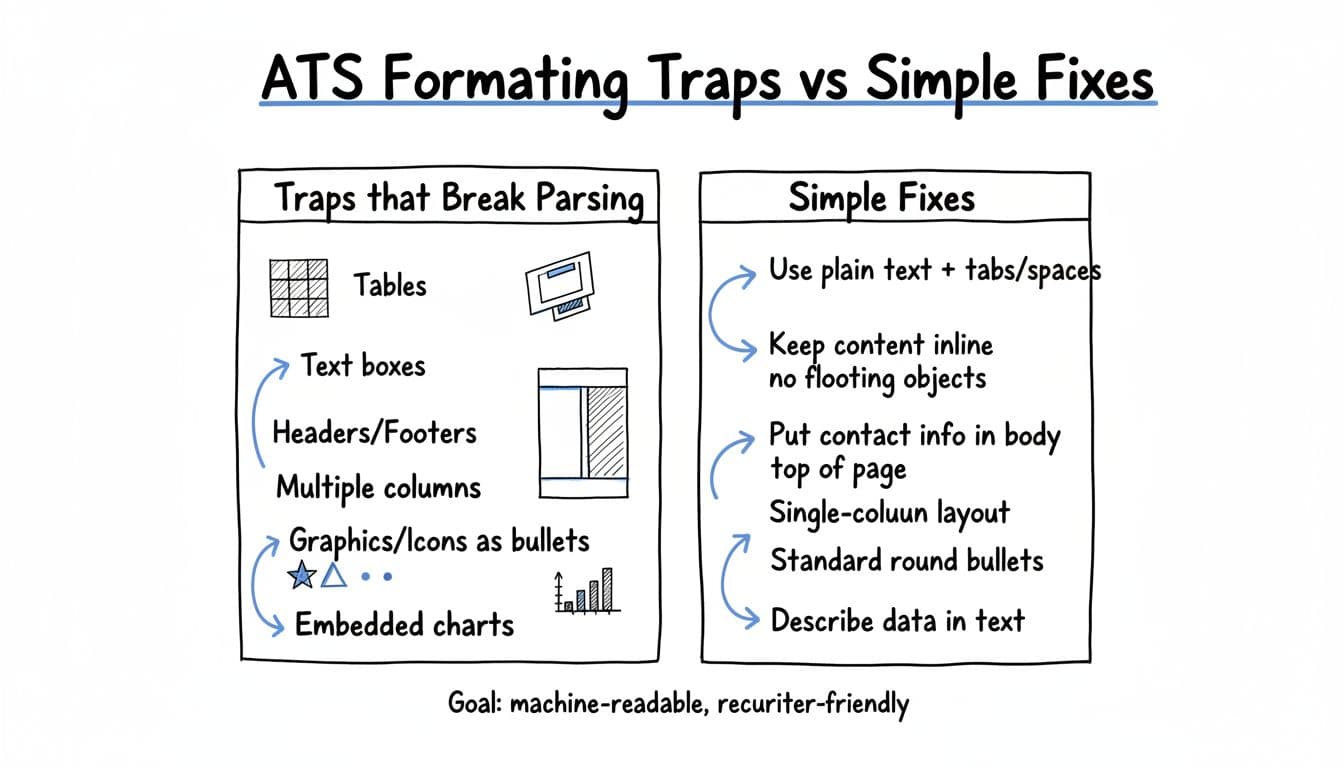
ATS Formatting Traps vs Simple Fixes (quick visual)
Trap 1: Tables (the silent parser-breaker)
Tables look tidy because they force content into neat boxes. An ATS may read those boxes out of order, or ignore some cells.
Before (table layout): A 2-column skills section where “Skills” is in the left column and specific tools are in the right column. The ATS might pull only the left column (just the word “Skills”) or jumble tools into unrelated sections.
After (plain text layout):
Skills: SQL, Excel, Google Analytics, Tableau, Salesforce
Simple fix: replace tables with plain text lines, using commas or short grouped lines. If you need alignment, use tabs or spaces for white space, not a grid.
If you want to see how tables and columns behave in real ATS tests, this is a clear reference: Can the ATS read tables and columns on your resume?.
Trap 2: Text boxes and floating shapes (content that “isn’t really there”)
They often act like stickers on top of a page. They can float, overlap, or anchor in odd places when converted to another system. Some ATS tools treat them as separate objects and skip them, which hurts keyword optimization since the system misses searchable content.
Before (text box sidebar): A text box on the right with “Core Skills” and a list of keywords. You see it. The ATS might not.
After (inline section): A standard “Skills” heading with a simple list underneath, placed in the main document flow.
Simple fix: if you used a text box for any must-have info (skills, resume summary, contact details), move it into the body as normal text.
Trap 3: Headers and footers (where contact info goes to disappear)
A classic resume design move is putting email, phone, and LinkedIn in the resume header so the page looks clean. Some ATS systems don’t reliably read header and footer content, or they read it inconsistently.
Before (header contact block): Name large, with phone and email in the header line. The ATS imports your resume, but your profile shows “No phone number found.”
After (top-of-page body text): Put contact information at the top of the first page, but in the main body, above the professional summary.
Simple fix: keep contact details in plain text at the top. One line is enough: Name
City, State | phone | email | LinkedIn URL
Trap 4: Multiple columns (when reading order turns into a traffic jam)
Columns are great for magazines. They’re risky for ATS. Many parsers read left-to-right across the page, not top-to-bottom the way a human scans.
Before (two-column resume): Left column has skills and education, right column has work experience. The ATS may read: Skills, Education, then jump into the middle of work experience, then loop back, mixing dates and titles.
After (single-column layout): One vertical flow in reverse chronological order: Summary, Skills, Work Experience, Education.
Simple fix: use a single column for the full document to create a recruiter friendly format. If you want a cleaner look, use spacing, not columns.
Other ATS resume formatting mistakes that cause messy imports
Even if you avoid the big four, smaller choices can still hurt resume formatting for ATS:
Icons as bullets: A star icon might turn into a strange character. Use standard round bullets.
Charts and skill bars: They may show up as blank space. Describe proficiency using relevant keywords and industry-specific terminology in words instead.
Section headings that are too clever: “Where I’ve Been” can confuse mapping. Use standard resume headings such as “Experience,” “Work Experience,” “Education,” “Skills.”
Heavy line breaks: Too many manual breaks can split sentences and dates. Use normal paragraph spacing.
Jobscan keeps an updated list of common issues worth checking: ATS resume formatting mistakes to avoid.
ATS-safe resume layout blueprint (what “clean” looks like)
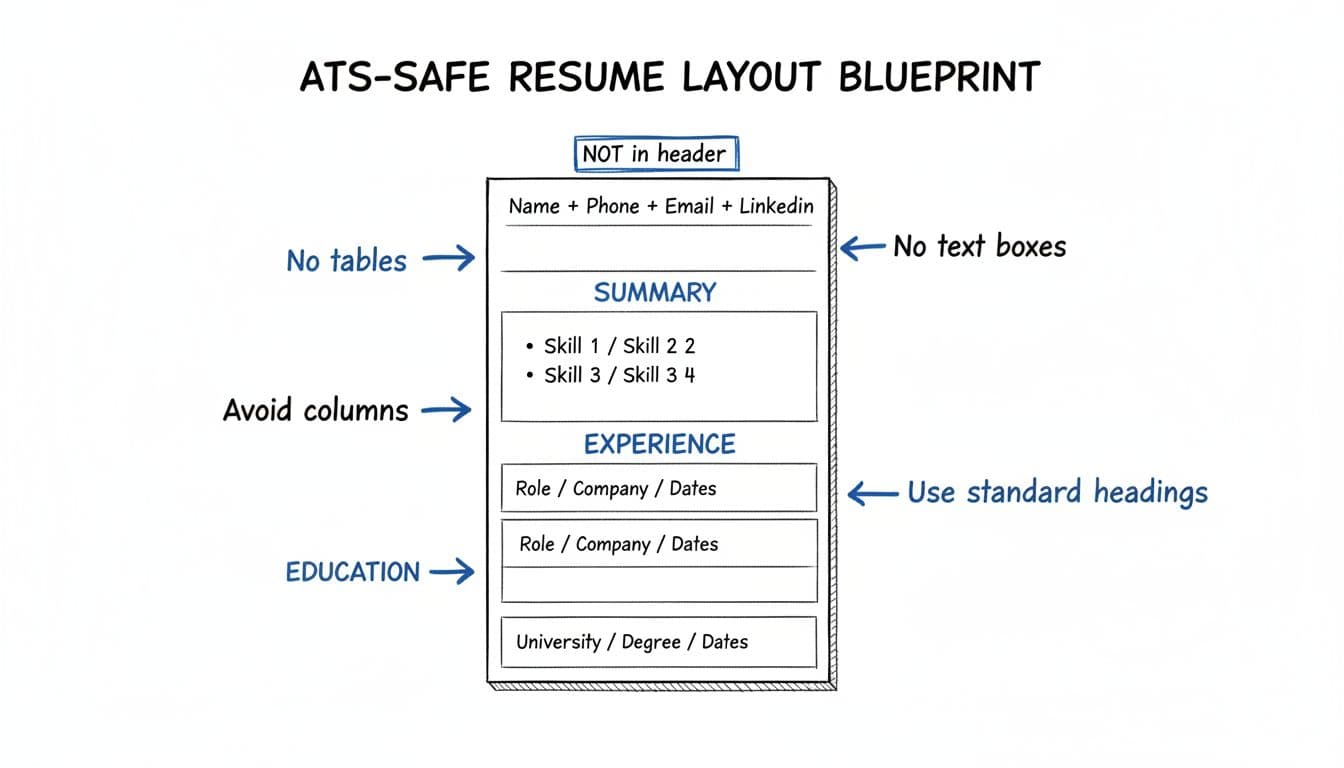
A reliable ATS-friendly resume usually has:
- A single-column structure (essential for an ATS compliant resume)
- Standard headings
- Plain text content in the document body (not headers, not floating objects)
- Consistent date formatting (pick one style and stick to it)
It can still look modern. Think of it like a well-labeled folder system in a standardized format: easy to scan, hard to misfile.
ATS resume formatting checklist (fast scan before you submit)
Use this quick check before every upload:
- Single column from top to bottom
- No tables for skills or layout
- No text boxes for any important content
- Contact information not in the header/footer
- Standard resume headings (Summary, Skills, Experience, Education)
- Simple bullets, no icons as bullets
- Clear job entries (Title, Company, Location, Dates, then bullets)
- Word doc (DOCX) is often the safest file type, PDF format can be fine but vary by system (test it)
A simple testing workflow to catch parsing problems in 3 minutes
You don’t need special software to do a basic sanity check.
- Save a copy as DOCX in Microsoft Word (keep your “design version” separate, if you have one).
- Copy all text from your Word doc and paste into a plain text editor (Notes, TextEdit).
- Check reading order: does it flow like your resume, top to bottom?
- Look for red flags: missing contact info, dates moved, skills section split, bullet chaos.
- Fix the source file (remove tables, columns, text boxes), then re-test.
If the pasted text looks like a blender hit it, the ATS may struggle too.
Where CareerScribeAI fits (without adding formatting risk)
If you’re tired of guessing, CareerScribeAI can help keep structure clean while you focus on content. Its AI Resume Builder offers resume templates designed around Applicant Tracking System-safe layouts, its Cover Letter Generator can align your letter to the job description, and its interview prep tools help you follow up strong after you hit submit.
Treat tools like these as guardrails: they don’t replace judgment, but they can prevent common formatting traps.
Conclusion
Applicant Tracking Systems vary, and no format is perfect for every employer. Still, clean structure wins because it supports both software and humans. When in doubt, choose clarity over creative layout, and keep your ATS compliant resume formatting simple, linear, and easy to read. If your resume can’t be parsed cleanly, it can’t be judged fairly in the hiring process.